Aquif 3.5 series marks a defining moment in open-source AI innovation, blending raw reasoning power, massive context windows, and cutting-edge efficiency into a form you can now run locally. Available in two flagship variants, Aquif 3.5 Plus and Aquif 3.5 Max, these models rival frontier systems like Gemini 2.5 Pro, Claude Opus, and GPT-5 mini, while maintaining a suprisingly efficient 3.3B active parameters through their Mixture-of-Experts (MoE) design. Aquif 3.5 Plus offers hybrid reasoning with interchangeable thinking modes, letting you toggle between “speed-first” and “deep-thinking” behavior depending on your workload, whether it’s instant code completion or multi-step scientific reasoning. Meanwhile, Aquif 3.5 Max goes all in with a reasoning-only architecture, designed for advanced mathematics, algorithmic challenges, and large-scale code analysis, pushing an AAII composite score of 60, on par with top-tier commercial frontier models. These models have 1 million token context length, BF16/FP16 precision, and native multilingual support across 10+ languages.
In this guide, we’ll show you exactly how to install and run Aquif 3.5 locally, unlocking frontier-grade reasoning, flexible thinking modes, and massive context processing on your own hardware or within GPU-enabled environments.
Prerequisites
The minimum system requirements for running this model are:
Step-by-step process to install and run LongCat Video
For the purpose of this tutorial, we’ll use a GPU-powered Virtual Machine by NodeShift since it provides high compute Virtual Machines at a very affordable cost on a scale that meets GDPR, SOC2, and ISO27001 requirements. Also, it offers an intuitive and user-friendly interface, making it easier for beginners to get started with Cloud deployments. However, feel free to use any cloud provider of your choice and follow the same steps for the rest of the tutorial.
Step 1: Setting up a NodeShift Account
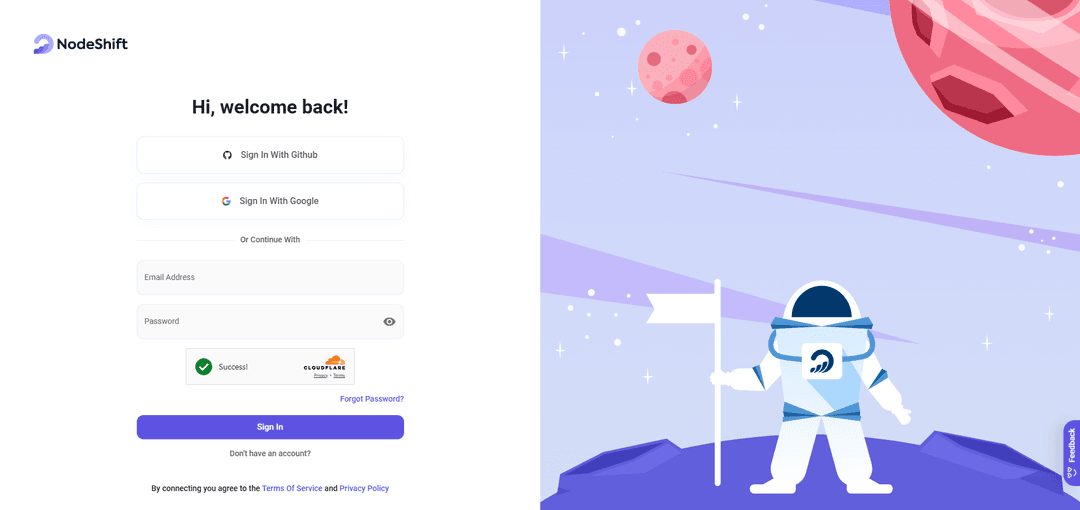
Visit app.nodeshift.com and create an account by filling in basic details, or continue signing up with your Google/GitHub account.
If you already have an account, login straight to your dashboard.
Step 2: Create a GPU Node
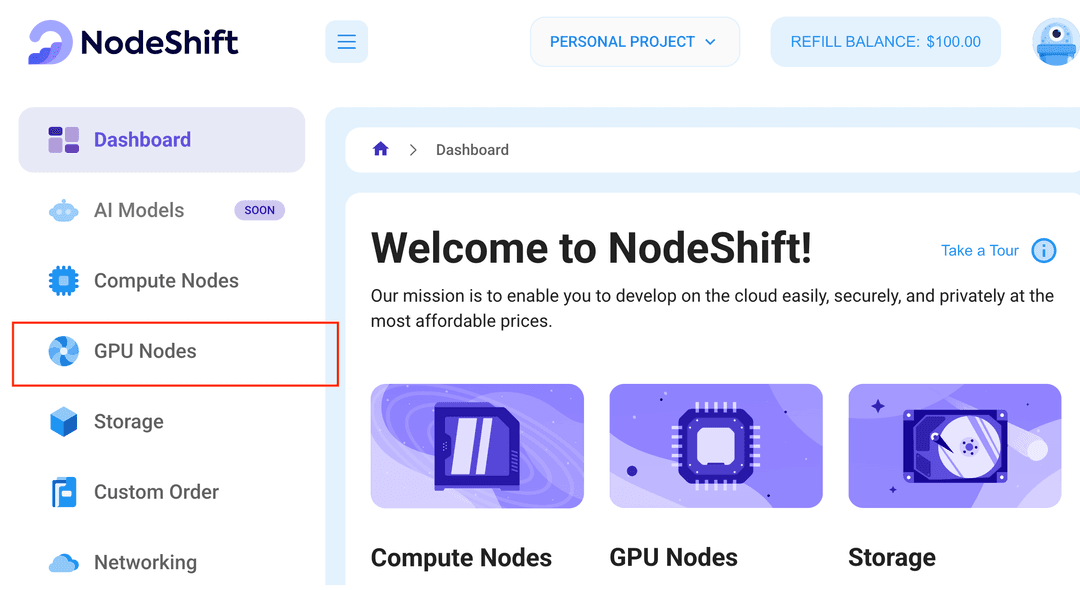
After accessing your account, you should see a dashboard (see image), now:
- Navigate to the menu on the left side.
- Click on the GPU Nodes option.
- Click on Start to start creating your very first GPU node.
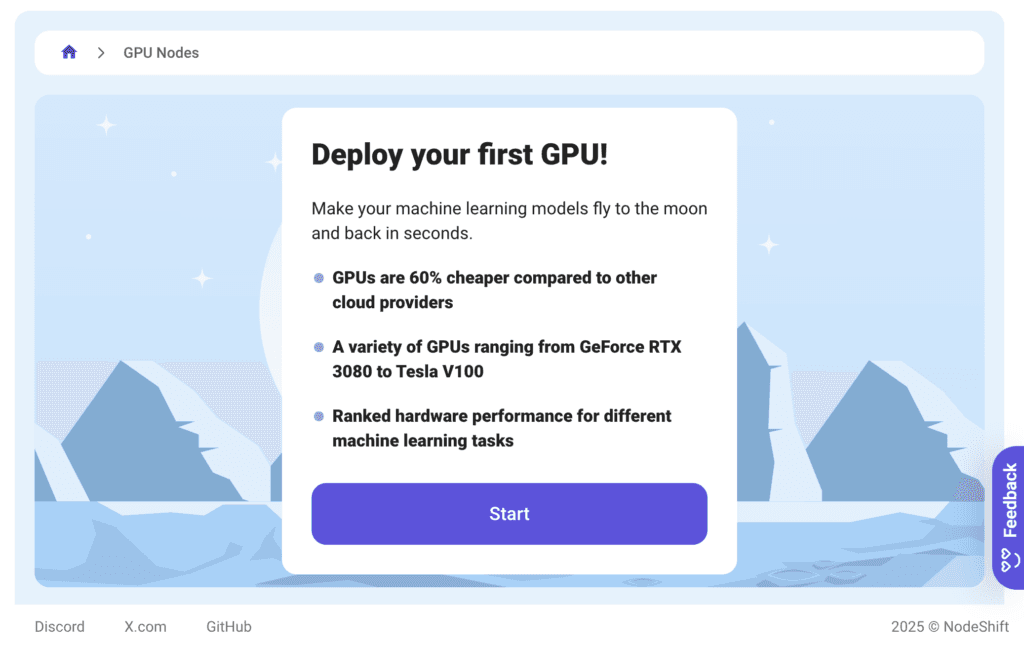
These GPU nodes are GPU-powered virtual machines by NodeShift. These nodes are highly customizable and let you control different environmental configurations for GPUs ranging from H100s to A100s, CPUs, RAM, and storage, according to your needs.
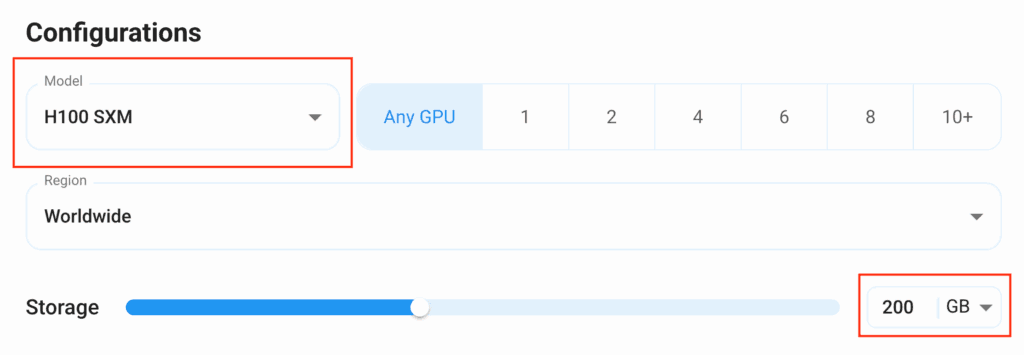
Step 3: Selecting configuration for GPU (model, region, storage)
- For this tutorial, we’ll be using 1x H100 GPU, however, you can choose any GPU as per the prerequisites.
- Similarly, we’ll opt for 200GB storage by sliding the bar. You can also select the region where you want your GPU to reside from the available ones.
Step 4: Choose GPU Configuration and Authentication method
- After selecting your required configuration options, you’ll see the available GPU nodes in your region and according to (or very close to) your configuration. In our case, we’ll choose a 1x RTX A6000 48GB GPU node with 64vCPUs/63GB RAM/200GB SSD.
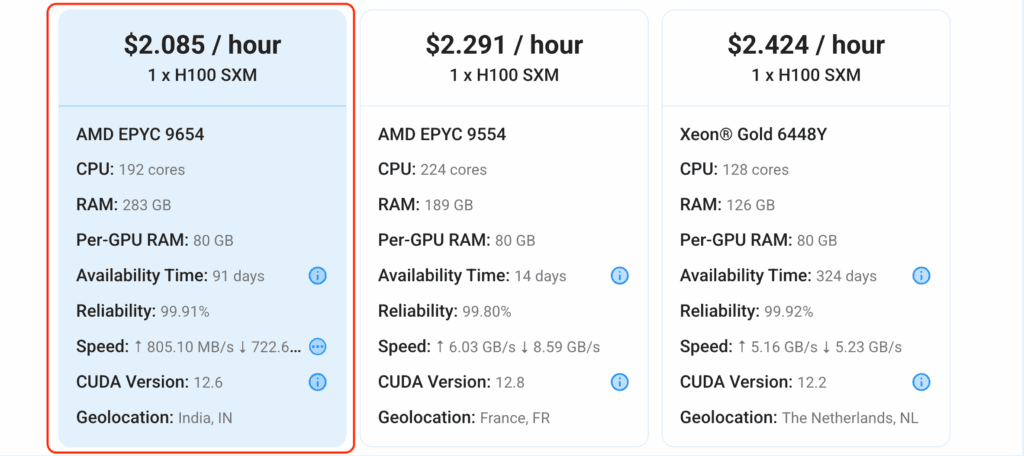
2. Next, you’ll need to select an authentication method. Two methods are available: Password and SSH Key. We recommend using SSH keys, as they are a more secure option. To create one, head over to our official documentation.
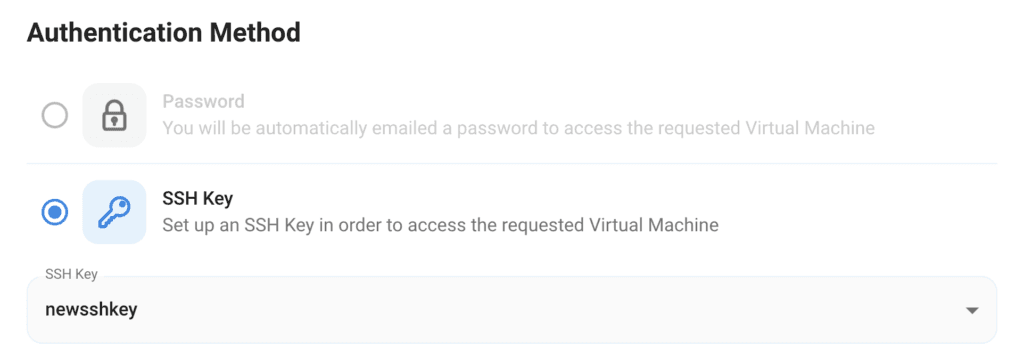
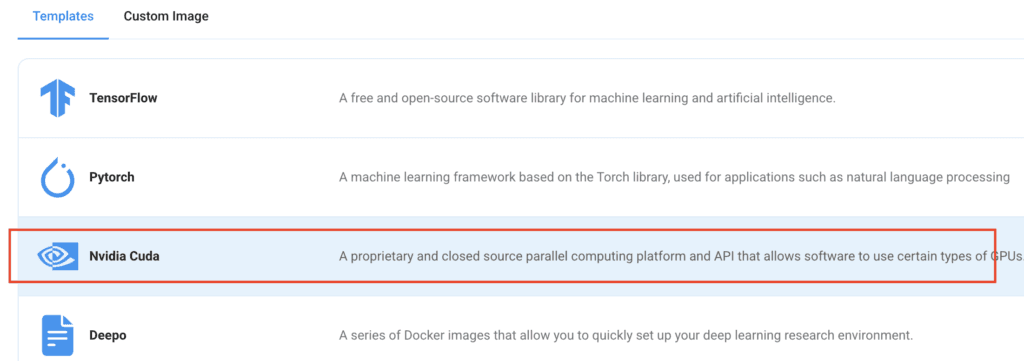
Step 5: Choose an Image
The final step is to choose an image for the VM, which in our case is Nvidia Cuda.
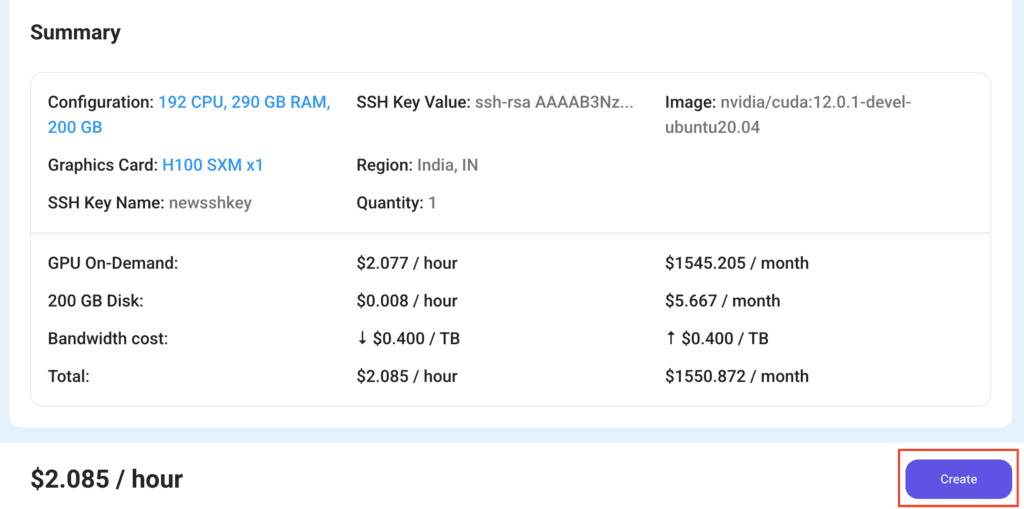
That’s it! You are now ready to deploy the node. Finalize the configuration summary, and if it looks good, click Create to deploy the node.

Step 6: Connect to active Compute Node using SSH
- As soon as you create the node, it will be deployed in a few seconds or a minute. Once deployed, you will see a status Running in green, meaning that our Compute node is ready to use!
- Once your GPU shows this status, navigate to the three dots on the right, click on Connect with SSH, and copy the SSH details that appear.
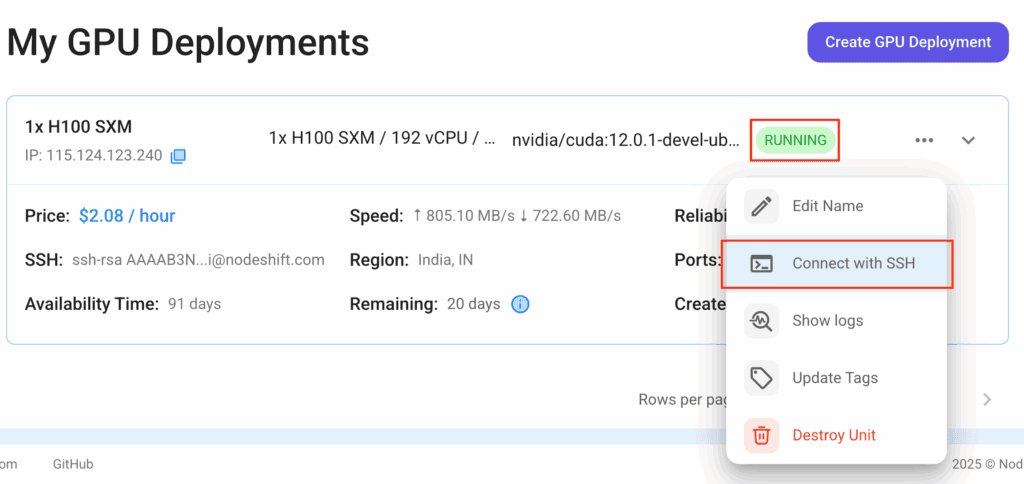
As you copy the details, follow the below steps to connect to the running GPU VM via SSH:
- Open your terminal, paste the SSH command, and run it.
2. In some cases, your terminal may take your consent before connecting. Enter ‘yes’.
3. A prompt will request a password. Type the SSH password, and you should be connected.
Output:
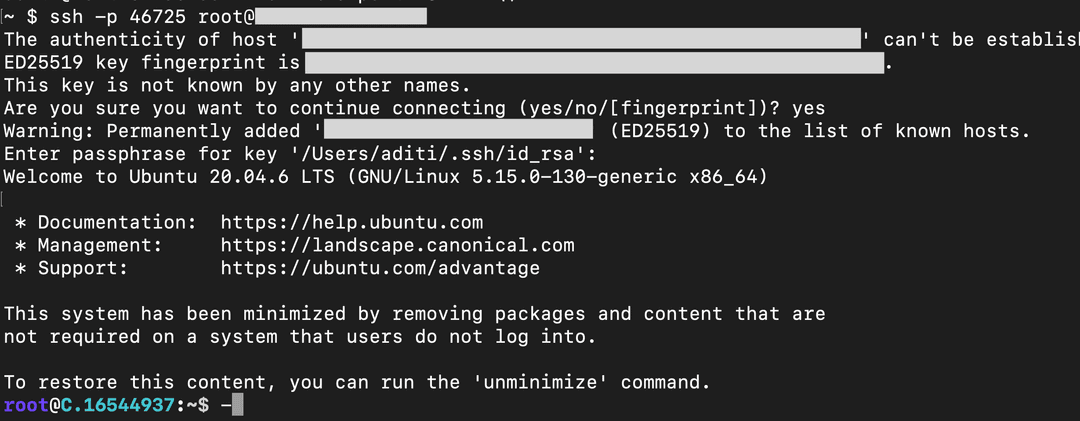
Next, If you want to check the GPU details, run the following command in the terminal:
!nvidia-smi
Step 7: Set up the project environment with dependencies
- Create a virtual environment with Anaconda.
conda create -n aquif python=3.11 -y && conda activate aquif
Output:
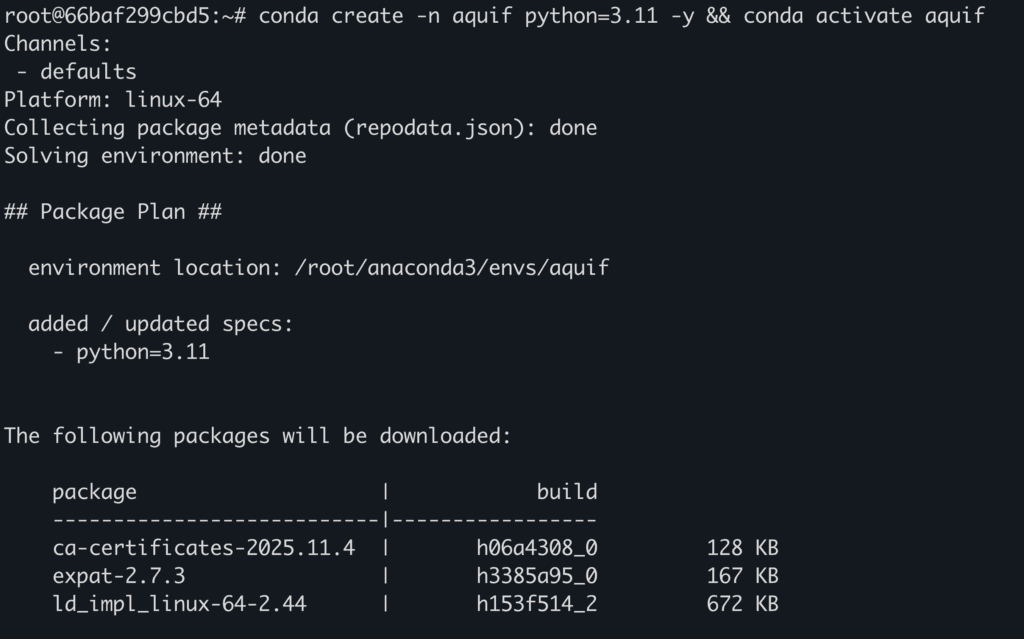
2. Install required packages and dependencies.
pip install torch torchvision torchaudio --index-url https://download.pytorch.org/whl/cu121
pip install git+https://github.com/huggingface/transformers
pip install git+https://github.com/huggingface/accelerate
pip install huggingface_hub
3. Login to Hugging Face with HF READ access token.
hf auth login
Output:
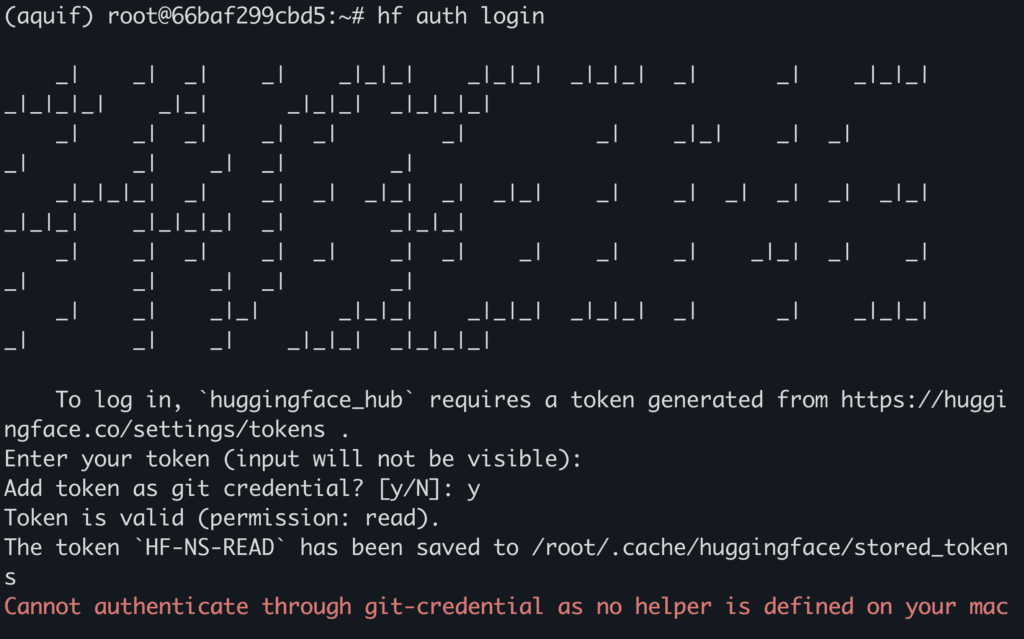
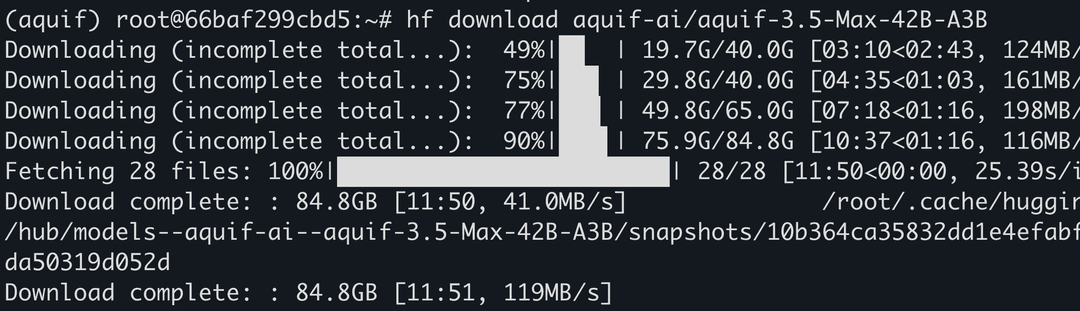
4. Download model checkpoints.
Replace it with aquif-ai/aquif-3.5-Plus-30B-A3B to install Aquif 3.5 Plus version.
hf download aquif-ai/aquif-3.5-Max-42B-A3B
Output:
5. Install and run jupyter notebook.
conda install -c conda-forge --override-channels notebook -y
conda install -c conda-forge --override-channels ipywidgets -y
jupyter notebook --allow-root
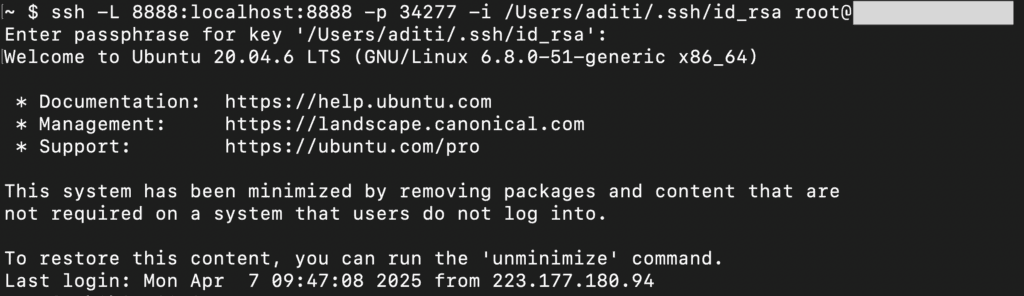
6. If you’re on a remote machine (e.g., NodeShift GPU), you’ll need to do SSH port forwarding in order to access the jupyter notebook session on your local browser.
Run the following command in your local terminal after replacing:
<YOUR_SERVER_PORT> with the PORT allotted to your remote server (For the NodeShift server – you can find it in the deployed GPU details on the dashboard).
<PATH_TO_SSH_KEY> with the path to the location where your SSH key is stored.
<YOUR_SERVER_IP> with the IP address of your remote server.
ssh -L 8888:localhost:8888 -p <YOUR_SERVER_PORT> -i <PATH_TO_SSH_KEY> root@<YOUR_SERVER_IP>
Output:
After this copy the URL you received in your remote server:
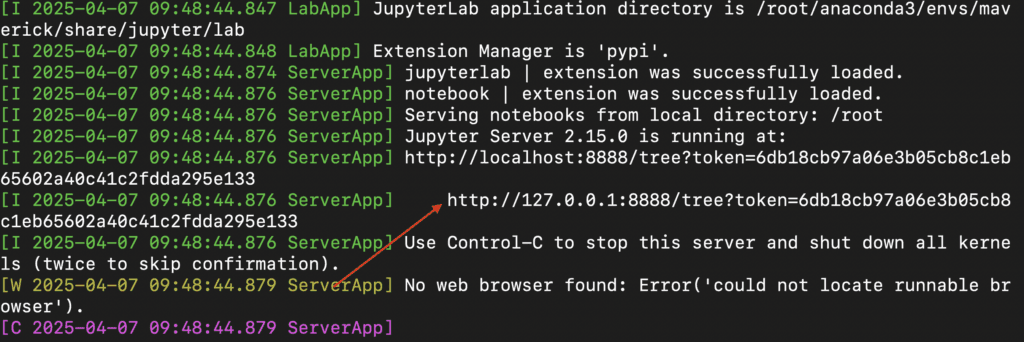
And paste this on your local browser to access the Jupyter Notebook session.
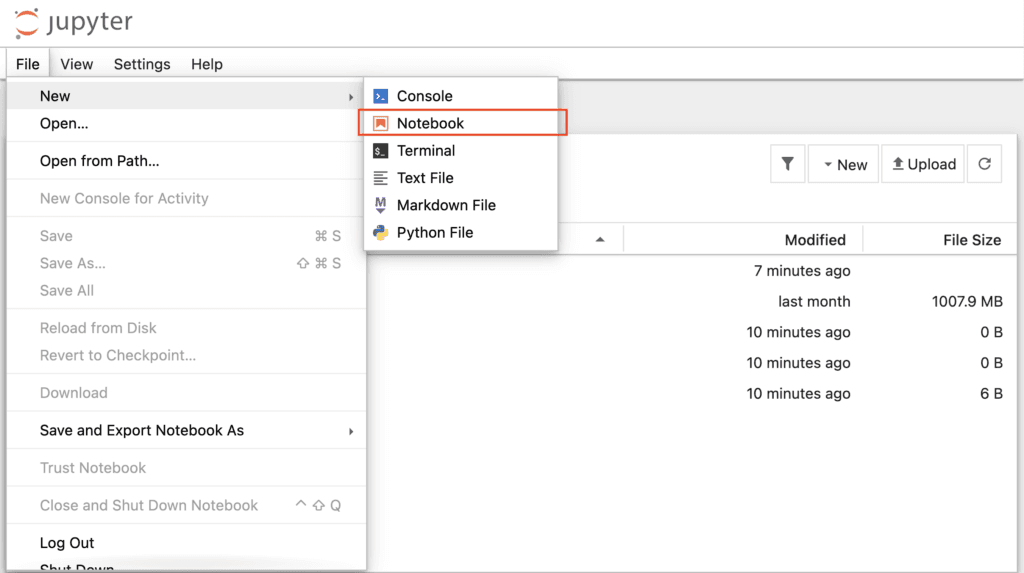
Step 8: Load and Run the model
- Open a Python notebook inside Jupyter.
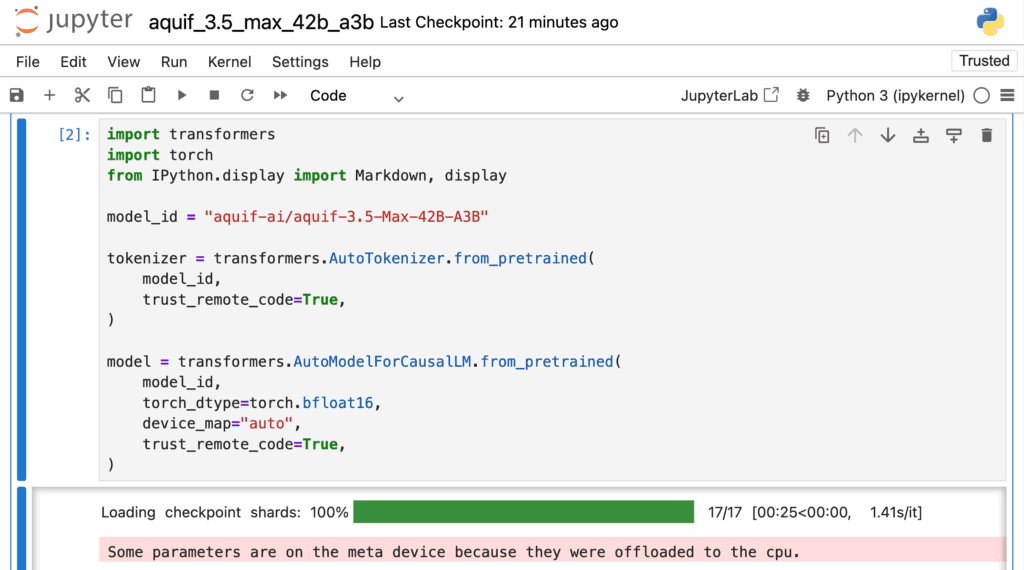
2. Load model checkpoints.
Replace model_id with aquif-ai/aquif-3.5-Plus-30B-A3B to install Aquif 3.5 Plus version.
import transformers
import torch
from IPython.display import Markdown, display

model_id = "aquif-ai/aquif-3.5-Max-42B-A3B"

tokenizer = transformers.AutoTokenizer.from_pretrained(
    model_id,
    trust_remote_code=True,
)

model = transformers.AutoModelForCausalLM.from_pretrained(
    model_id,
    torch_dtype=torch.bfloat16,
    device_map="auto",
    trust_remote_code=True,
)
Output:
3. Run the model for inference.
pipe = transformers.pipeline(
    task="text-generation",
    model=model,
    tokenizer=tokenizer,
)

prompt = '''
You are a reasoning-only model.
Analyze the following Python function and identify what it is trying to compute.
Explain any logical or performance issues and rewrite it in a more efficient and readable way.

def f(n):
    if n <= 1:
        return n
    else:
        return f(n-1) + f(n-3)

Provide reasoning before the answer.
'''

messages = [
    {"role": "system", "content": "You are a helpful assistant.\nset thinking = true"},
    {"role": "user", "content": prompt},
]

# Turn messages into a single generation-ready string
formatted = tokenizer.apply_chat_template(
    messages,
    tokenize=False,
    add_generation_prompt=True,
)

# Recommended generation settings
gen_kwargs = dict(
    max_new_tokens=1024,
    do_sample=True,
    temperature=0.6,
    top_p=0.95,
    top_k=20,
    repetition_penalty=1.05,
    return_full_text=False,
    eos_token_id=tokenizer.eos_token_id,
)

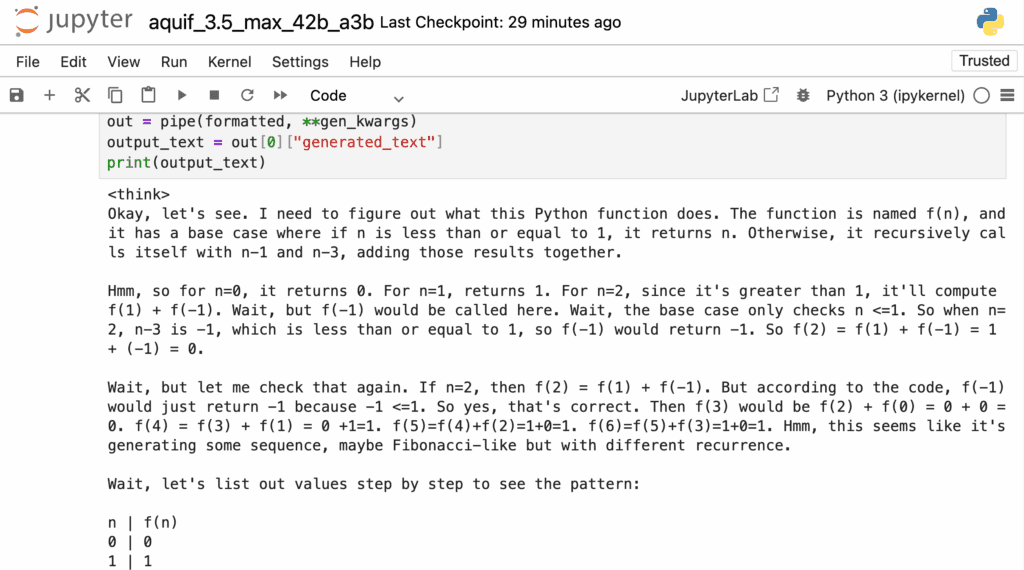
out = pipe(formatted, **gen_kwargs)
output_text = out[0]["generated_text"]
print(output_text)
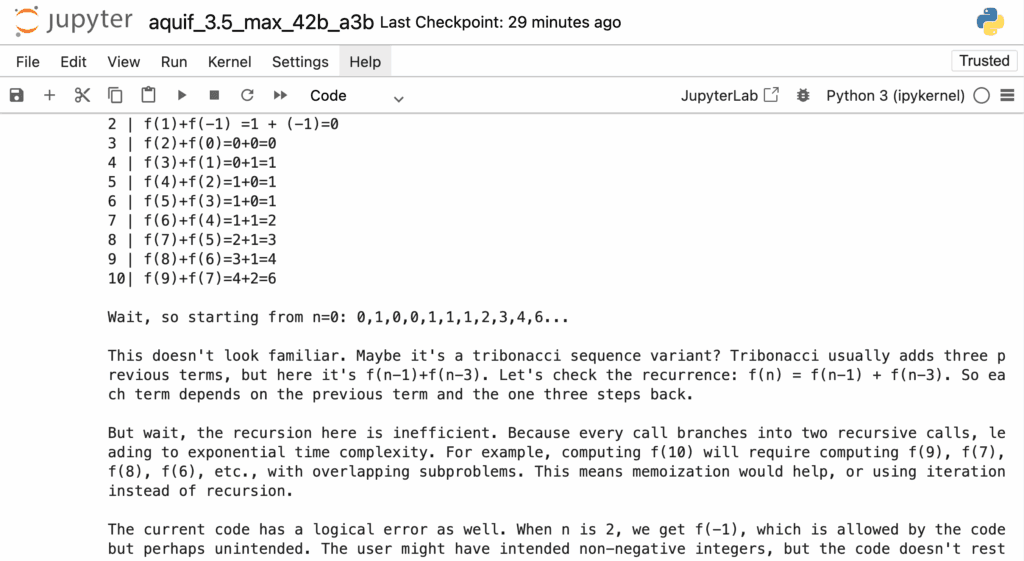
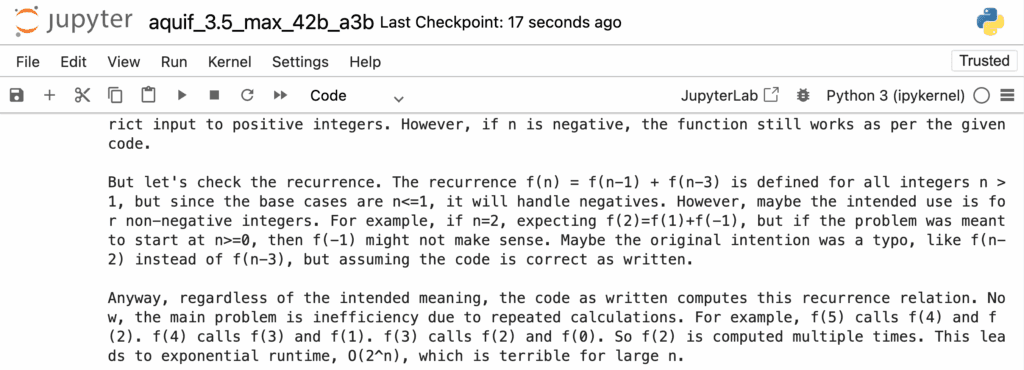
Output:
Conclusion
Aquif 3.5 stands as a milestone in open-source AI, bringing frontier-grade reasoning, hybrid thinking modes, and million-token context capabilities right to your local setup. With its Plus and Max variants, the model empowers developers and researchers to switch seamlessly between speed and deep analytical reasoning, unlocking use cases from scientific computation to advanced code analysis. NodeShift Cloud makes this entire process effortless by offering ready-to-run deployment templates, preconfigured environments, and GPU-optimized instances tailored for Aquif 3.5. If you’re experimenting locally or scaling your own reasoning agent in the cloud, NodeShift ensures Aquif 3.5 runs securely, efficiently, and without friction, bridging the gap between cutting-edge AI innovation and real-world usability.